

Comment configurer et utiliser Windscribe sous Linux (interface graphique)


Le moyen le plus simple d’utiliser Windscribe sous Linux est de passer par l’application de bureau officielle. Elle vous permet de vous connecter, de changer d’emplacement et de gérer les principales fonctionnalités du VPN sans modifier manuellement les fichiers de configuration VPN. Le client de bureau est à code source ouvert, et vous pouvez consulter le code ou suivre son développement dans le dépôt de l’application de bureau Windscribe.
Avant de commencer
Assurez-vous de disposer des éléments suivants avant de commencer la configuration :
- Configuration requise pour le système d’exploitation : une distribution Linux de bureau prise en charge. Sont actuellement pris en charge Ubuntu 22.04 ou version ultérieure, Fedora 36 ou version ultérieure, openSUSE Leap 15.6, Arch Linux avec glibc 2.35 ou version ultérieure, ainsi que les distributions immuables compatibles. Téléchargez le paquet officiel correspondant à votre distribution et à l’architecture de votre processeur (voir Paquets Linux pris en charge ci-dessous).
- Compte requis : un compte Windscribe valide. Les comptes Free bénéficient par défaut d’un quota mensuel de 2 Go, qui passe à 10 Go par mois après confirmation de votre adresse e-mail. Consultez la section Formules et tarifs ci-dessous pour connaître les différences entre Free, Pro et Build-A-Plan.
- Paquet d’installation : téléchargez le programme d’installation du client adapté à votre machine directement depuis la page officielle de téléchargement de Windscribe.
Windscribe ne journalise pas votre activité de navigation et ne vend pas les données de ses utilisateurs ; consultez notre Politique de confidentialité pour plus de détails.
Formules et tarifs
Windscribe propose une formule gratuite et deux options payantes. Votre formule détermine le volume de données dont vous disposez, les emplacements VPN auxquels vous pouvez accéder et les paramètres de R.O.B.E.R.T. que vous pouvez configurer.
- Free : aucun paiement requis. Vous disposez de 2 Go de données par mois, ou de 10 Go par mois après confirmation de votre adresse e-mail. Les comptes Free peuvent se connecter uniquement aux emplacements VPN gratuits.
- Pro : données illimitées, accès à tous les emplacements VPN et accès complet à R.O.B.E.R.T. Facturation mensuelle ou annuelle, la facturation annuelle étant moins chère au mois.
- Build-A-Plan : une option flexible qui vous permet de payer par emplacement et d’ajouter des données illimitées ainsi qu’un accès complet à R.O.B.E.R.T. Une formule adaptée si vous n’avez besoin que de quelques pays précis.
Les prix peuvent varier selon la région et la devise, et Windscribe propose des promotions saisonnières. Consultez donc les tarifs en vigueur sur le site Web de Windscribe avant de vous abonner.
Paquets Linux pris en charge
Des paquets officiels pour l’application de bureau sont actuellement disponibles pour :
- Debian / Ubuntu : AMD64 et ARM64/AARCH64
- Fedora : AMD64 et ARM64/AARCH64
- Arch Linux : AMD64
- openSUSE : AMD64
Utilisez le paquet qui correspond à votre distribution et à l’architecture de votre processeur. D’autres distributions apparentées peuvent fonctionner avec le paquet correspondant, mais ne font pas toujours partie des plateformes officiellement prises en charge. Pour garantir le bon fonctionnement de l’application, téléchargez les paquets uniquement depuis les canaux officiels de Windscribe.
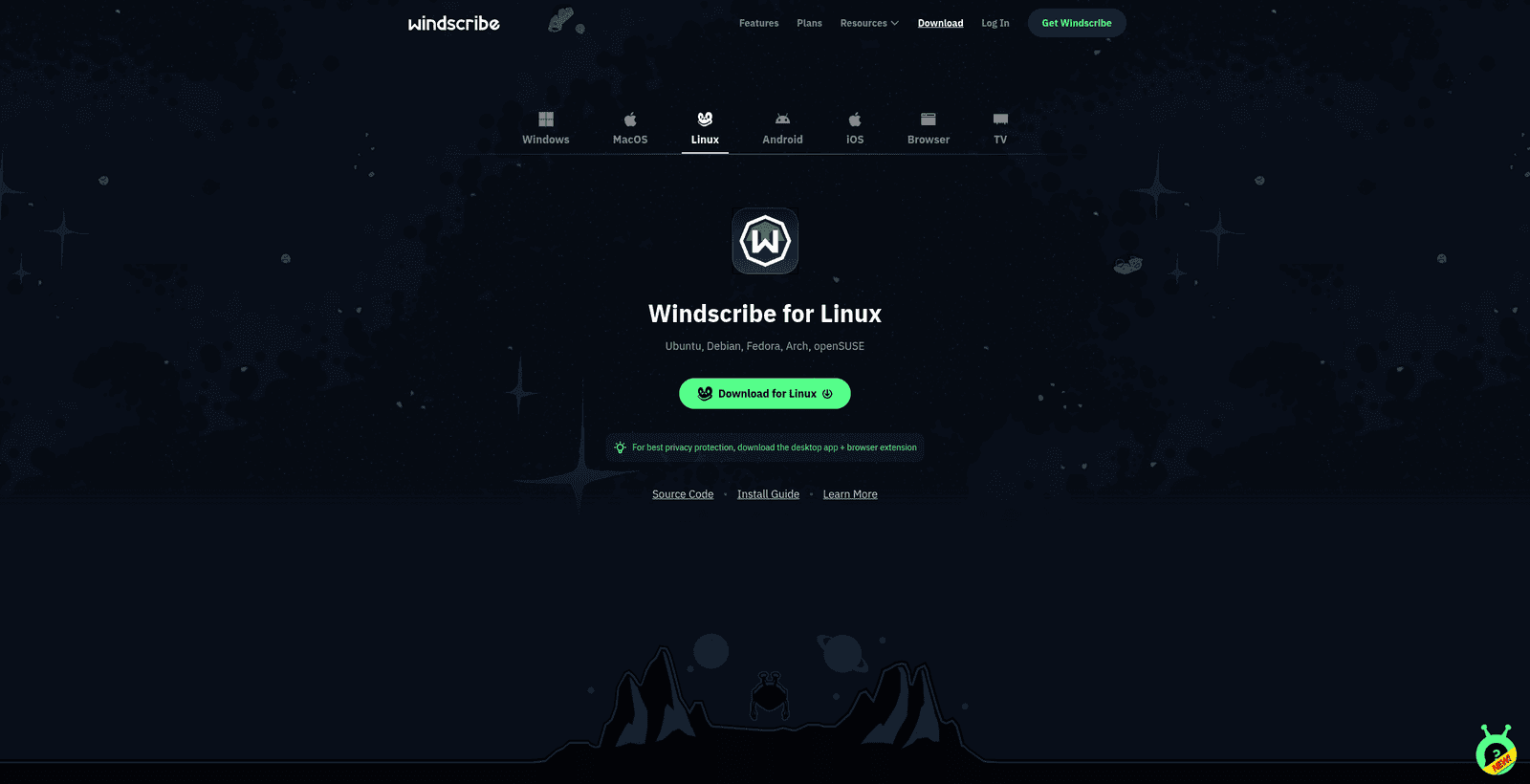
Figure 1 : Sélectionnez Linux sur la page de téléchargement de Windscribe, puis téléchargez le paquet correspondant à votre distribution et à l’architecture de votre processeur.
Les noms de fichiers exacts se présentent comme suit, [current version] étant remplacé par le numéro de version réel. Les exemples ci-dessous indiquent les versions 64 bits pour processeurs Intel/AMD ainsi que les versions ARM64 disponibles :
- Debian et Ubuntu (Intel/AMD 64 bits) :
windscribe_[current version]_amd64.deb - Debian et Ubuntu (ARM 64 bits) :
windscribe_[current version]_arm64.deb - Fedora (Intel/AMD 64 bits) :
windscribe_[current version]_amd64_fedora.rpm - Fedora (ARM 64 bits) :
windscribe_[current version]_arm64_fedora.rpm - Arch Linux (Intel/AMD 64 bits) :
windscribe_[current version]_amd64.pkg.tar.zst - openSUSE (Intel/AMD 64 bits) :
windscribe_[current version]_amd64_opensuse.rpm
Ici, [current version] est remplacé par le numéro de version réel. Un véritable nom de fichier Debian ou Ubuntu ressemble donc à windscribe_2.x.y_amd64.deb.
En plus de l’application de bureau ci-dessus, Windscribe propose également des paquets distincts pour l’interface en ligne de commande Linux. Ils sont destinés aux machines sans interface graphique, aux serveurs et aux environnements utilisant uniquement le terminal, sur lesquels aucun environnement de bureau n’est installé. Consultez Comment utiliser Windscribe sous Linux (CLI et sans interface graphique) pour savoir quand utiliser un paquet en ligne de commande plutôt que l’application de bureau.
Windscribe ne propose actuellement aucune version Flatpak ou Snap officielle. Pour bénéficier d’une utilisation prise en charge, utilisez donc ces paquets natifs.
Installation de l’application
Méthode 1 : utiliser le terminal (recommandé et plus fiable)
Les différentes distributions Linux ne gérant pas toutes les programmes d’installation graphiques de la même manière, le terminal constitue la méthode la plus fiable pour installer l’application. Ouvrez votre terminal et exécutez la commande correspondant à votre distribution.
Les commandes ci-dessous supposent que le paquet se trouve dans votre dossier ~/Downloads ; adaptez le chemin si vous l’avez enregistré ailleurs. Elles utilisent les paquets pour processeurs Intel/AMD 64 bits (AMD64). Si vous avez téléchargé un paquet pour processeur ARM 64 bits, remplacez le nom de fichier par celui du paquet ARM64 correspondant.
- Ubuntu / Debian :
sudo apt install ~/Downloads/windscribe_[current version]_amd64.deb - Fedora :
sudo dnf install ~/Downloads/windscribe_[current version]_amd64_fedora.rpm - Arch Linux :
sudo pacman -U ~/Downloads/windscribe_[current version]_amd64.pkg.tar.zst - openSUSE :
sudo zypper install ~/Downloads/windscribe_[current version]_amd64_opensuse.rpm
Les paquets Linux de Windscribe sont signés avec la même clé GPG de Windscribe. Si openSUSE refuse d’installer le paquet parce que la clé de signature n’est pas présente, importez d’abord la clé publique officielle :
sudo rpm --import https://windscribe.com/windscribe_linux_signing_key.pubMéthode 2 : utiliser la logithèque graphique
Si votre distribution prend en charge l’installation graphique par double-clic, vous pouvez installer l’application sans saisir de commandes :
- Ouvrez le gestionnaire de fichiers de votre système et accédez à votre dossier Downloads.
- Double-cliquez sur le paquet Windscribe téléchargé.
- La logithèque ou le programme d’installation de paquets de votre système d’exploitation s’ouvre. Sélectionnez le bouton Install.
- Saisissez le mot de passe administrateur de votre système lorsque vous y êtes invité afin de terminer l’installation.
Ouverture de Windscribe
- Ouvrez le menu Applications ou la vue d’ensemble des activités de votre système.
- Recherchez Windscribe, puis sélectionnez l’icône de l’application pour la lancer.
- Sélectionnez le bouton Login dans la fenêtre principale de l’application.
- Saisissez votre nom d’utilisateur et votre mot de passe Windscribe, puis sélectionnez la flèche verte pour vous connecter.
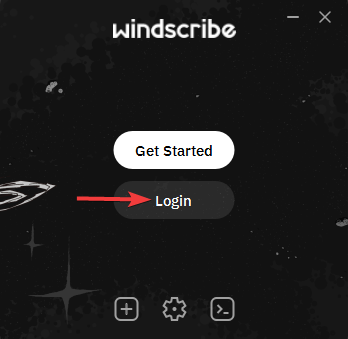
Figure 2 : Sélectionnez Login si vous possédez déjà un compte Windscribe.
Connexion
Pour sécuriser immédiatement votre connexion, sélectionnez le grand bouton d’alimentation dans la fenêtre de l’application.
Pour choisir un emplacement VPN précis, sélectionnez le champ d’emplacement dans la fenêtre de l’application afin d’ouvrir la liste complète, puis sélectionnez la destination souhaitée.
Les comptes Free peuvent se connecter uniquement aux emplacements VPN gratuits. Les emplacements Premium signalés par une étoile nécessitent un abonnement Build-A-Plan ou Pro. Si un emplacement apparaît verrouillé, il s’agit d’une limite de la formule et non d’une erreur de connexion.
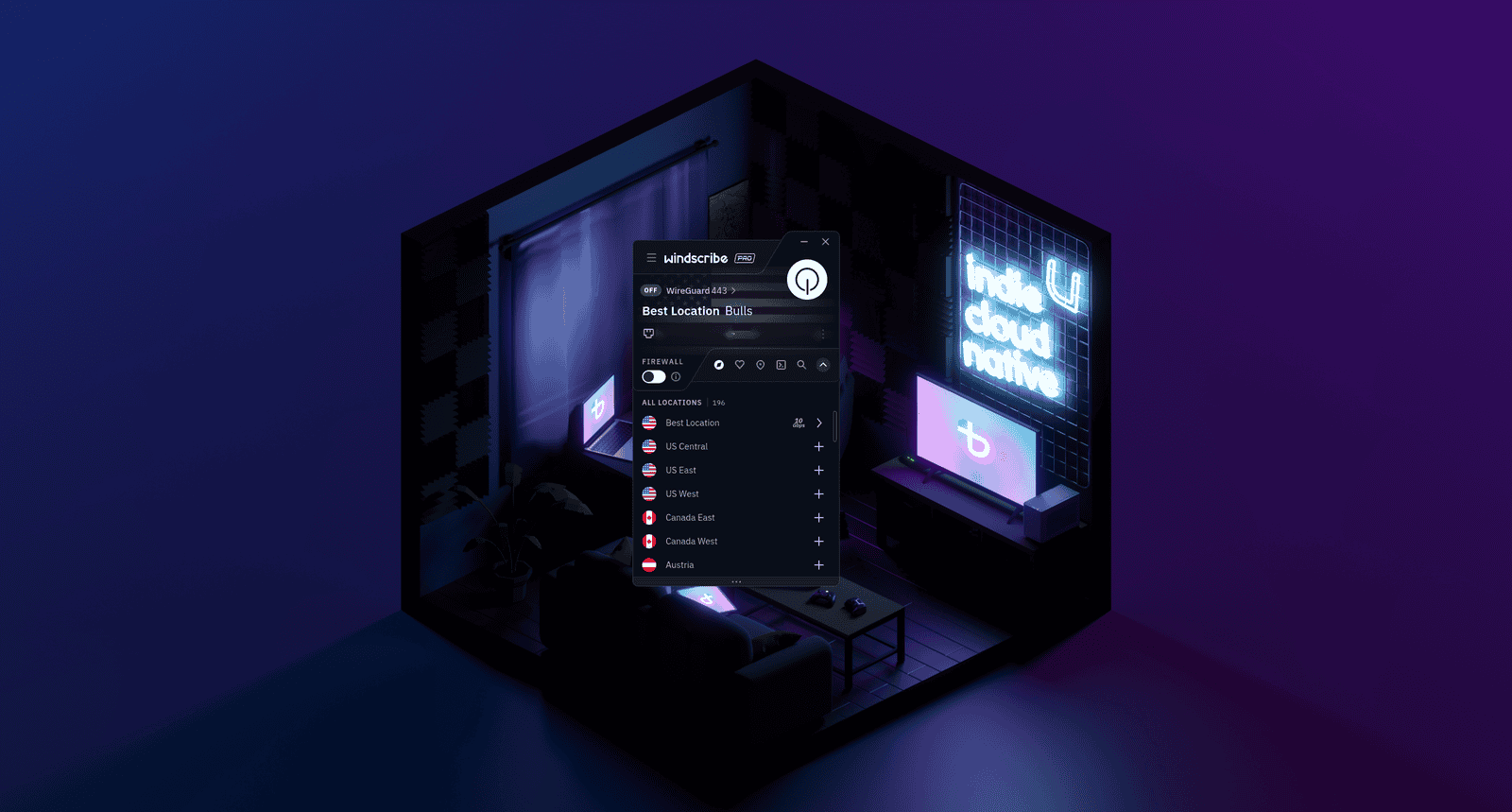
Figure 3 : La liste des emplacements vous permet de choisir une destination avant de vous connecter. L’application présentée ici est encore déconnectée.
Vous saurez que vous êtes bien connecté lorsque la fenêtre principale de l’application devient bleue, que le bouton d’alimentation s’allume en vert, que l’état indique ON et que votre nouvelle adresse IP VPN s’affiche à l’écran à la place de votre adresse IP personnelle.
Déconnexion
Lorsque vous souhaitez vous déconnecter, sélectionnez de nouveau le bouton d’alimentation. L’application revient à son état déconnecté OFF.
Désinstallation
Si vous devez supprimer Windscribe, utilisez le gestionnaire de paquets de votre distribution. Exécutez la commande correspondant à votre système :
- Ubuntu / Debian :
sudo apt remove windscribe - Fedora :
sudo dnf remove windscribe - Arch Linux :
sudo pacman -R windscribe - openSUSE :
sudo zypper remove windscribe
Avant la désinstallation, déconnectez-vous du VPN et désactivez d’abord le Firewall afin d’éviter toute mauvaise surprise ultérieure avec votre connexion réseau.
Paramètres utiles à connaître
L’application de bureau inclut plusieurs fonctionnalités de sécurité essentielles accessibles depuis le menu Preferences.
Firewall
- Présentation : un Firewall proactif intégré qui fonctionne directement au niveau des paquets système.
- Fonctionnement : plutôt que de réagir uniquement après une interruption, il bloque de manière proactive le trafic extérieur au tunnel VPN afin d’éviter les fuites.
- Utilité : si votre réseau Wi-Fi est interrompu de manière inattendue ou qu’un câble réseau est débranché, votre ordinateur tente naturellement de revenir à la connexion standard de votre FAI. Le Firewall bloquant déjà tout le trafic hors VPN, ce basculement ne se produit pas, ce qui contribue à empêcher l’exposition de votre véritable adresse IP.
R.O.B.E.R.T.
- Présentation : un outil de filtrage de domaines côté serveur qui fonctionne au niveau DNS.
- Fonctionnement : il bloque certaines catégories de domaines, notamment les logiciels malveillants, les publicités et les outils de suivi, au niveau DNS avant que votre appareil ne s’y connecte.
- Utilité : il réduit le gaspillage de données en arrière-plan en empêchant le chargement des publicités, des domaines malveillants et des outils de suivi dans votre navigateur Web. Ce filtrage s’applique lorsque vous êtes connecté à Windscribe, mais des paramètres DNS-over-HTTPS personnalisés dans le navigateur ou des paramètres DNS locaux personnalisés peuvent le contourner.
Les paramètres de R.O.B.E.R.T. que vous pouvez configurer dépendent de votre formule :
- Free : les listes de blocage Malware et Ads + Trackers, ainsi que jusqu’à 3 règles personnalisées.
- Build-A-Plan : toutes les listes de blocage, ainsi que jusqu’à 10 règles personnalisées.
- Pro : toutes les listes de blocage, ainsi que jusqu’à 1,000 règles personnalisées.
Split Tunneling
- Présentation : un mécanisme de routage réseau sélectif.
- Fonctionnement : il vous permet de choisir des applications, noms d’hôte, adresses IP ou réseaux IP précis afin qu’ils utilisent le tunnel VPN ou le contournent.
- Utilité : cette fonctionnalité est utile pour les applications ou sites Web que vous souhaitez maintenir à l’intérieur ou à l’extérieur du tunnel, par exemple un site ou un service qui bloque les adresses IP VPN inconnues en raison de systèmes automatisés de sécurité ou d’évaluation des risques. Pour accéder aux appareils du réseau local, comme les imprimantes ou un NAS, utilisez plutôt le paramètre Allow LAN Traffic, qui est l’option dédiée aux connexions locales. Le Split Tunneling par application dépend du binaire ou du lanceur de l’application que vous sélectionnez. Sur certaines configurations de bureau Linux, vous devrez donc peut-être indiquer le bon exécutable pour que la règle prenne effet.
Sélection du protocole
- Présentation : le cadre de communication utilisé pour chiffrer et encapsuler vos données.
- Fonctionnement : il définit les règles de circulation des données entre votre machine et les emplacements VPN de Windscribe.
- Utilité : il vous permet de vous adapter à différents environnements réseau.
Sous Linux, l’application de bureau prend en charge cinq options de connexion :
- WireGuard : l’option par défaut. Rapide, moderne et efficace ; le meilleur choix pour une utilisation quotidienne.
- OpenVPN UDP : un protocole fiable et éprouvé ; généralement le plus rapide des deux modes OpenVPN.
- OpenVPN TCP : utilisez-le si la connexion UDP échoue. Plus robuste sur les réseaux de mauvaise qualité, mais potentiellement plus lent.
- Stealth : encapsule une connexion OpenVPN dans un tunnel TLS afin de dissimuler le trafic VPN. Utile sur les réseaux qui bloquent les protocoles VPN standard.
- WStunnel : encapsule la connexion dans un WebSocket pour renforcer l’obfuscation. Une solution de dernier recours sur les réseaux soumis à de fortes restrictions.
Stealth et WStunnel peuvent vous aider à vous connecter sur des réseaux restrictifs ou censurés, mais aucun VPN ne peut garantir l’accès dans toutes les situations, car les méthodes de blocage évoluent au fil du temps.
Network Rules / Auto-Connect
Network Rules permet à l’application de se connecter ou de se déconnecter automatiquement en fonction du réseau que vous rejoignez. Cette fonctionnalité est pratique pour les utilisateurs d’ordinateurs portables qui souhaitent que Windscribe s’active automatiquement dès qu’ils se connectent à un réseau Wi-Fi public ou non fiable.
MAC Address Spoofing
MAC Address Spoofing vous permet de remplacer l’adresse matérielle de votre appareil par une autre. Vous pouvez configurer son comportement, notamment pour générer automatiquement une nouvelle adresse. Cette fonctionnalité ajoute une couche de confidentialité sur les réseaux publics, où la véritable adresse MAC de votre appareil pourrait autrement être suivie.
Questions fréquentes
L’application de bureau fonctionne-t-elle sur les serveurs Linux sans interface graphique ?


Pourquoi l’application demande-t-elle le mot de passe de mon système lors de l’installation ?
Puis-je utiliser Windscribe en même temps que d’autres pare-feu ou VPN actifs sous Linux ?
Le changement de protocole VPN affecte-t-il la vitesse de ma connexion ?
La formule Free est-elle permanente ou s’agit-il d’une période d’essai ?
Windscribe journalise-t-il mon activité ?
Dépannage
Le paquet de l’application ne s’installe pas sur mon système
L’application affiche un message Login Failed
L’application ne parvient à se connecter à aucun emplacement VPN
Le filtrage DNS ou les règles R.O.B.E.R.T. ne fonctionnent pas correctement
Étapes suivantes
Vous avez besoin de renseignements techniques supplémentaires ou d’aide pour gérer vos configurations actives ? Consultez le client à code source ouvert dans le dépôt de l’application de bureau Windscribe, découvrez-en davantage sur R.O.B.E.R.T. ou visitez notre Centre d’aide pour obtenir des guides de configuration pour vos autres appareils.