

Comment configurer et utiliser Windscribe sur un PC Windows


Configurer Windscribe sur Windows, c’est à peu près ça : télécharger le programme d’installation, approuver le machin, laisser l’appli installer le pilote, reprendre le cours de sa vie.
Une fois Windscribe installé, votre PC Windows peut acheminer le trafic dans un tunnel VPN chiffré, masquer votre adresse IP et empêcher les applis en arrière-plan d’envoyer discrètement des données en dehors de la connexion VPN. Pratique, car Windows n’a jamais rencontré un processus en arrière-plan qu’il ne voulait pas inviter à dîner.
Ce guide explique comment installer Windscribe sur Windows 10 ou 11, vous connecter pour la première fois et configurer les réglages les plus importants sur un ordinateur de bureau ou portable.
Avant l’installation
Il ne vous faut pas grand-chose pour commencer :
- Un PC sous Windows 10 ou Windows 11 : L’appli de bureau Windscribe actuelle prend en charge Windows 10 et Windows 11. Les versions antérieures de Windows ne sont pas prises en charge.
- Un compte Windscribe : Vous pouvez utiliser un compte existant ou en créer un gratuitement pendant la configuration. Les comptes gratuits reçoivent 2 GB de données par mois par défaut, ou jusqu’à 10 GB par mois après confirmation d’une adresse e-mail.
- Un abonnement, s’il vous en faut plus : L’abonnement gratuit suffit pour essayer Windscribe. Si vous voulez des données illimitées, tous les emplacements et un accès complet à R.O.B.E.R.T., Pro coûte $9/mois ou $69/an, soit $5.75/mois. Build-A-Plan vous permet de choisir des emplacements de serveur précis pour $1 par emplacement et par mois, avec un minimum de $3.
Si vous ajoutez une adresse e-mail à votre compte, ouvrez l’e-mail de confirmation de Windscribe et suivez le lien pour la confirmer.
Télécharger Windscribe pour Windows
Téléchargez Windscribe directement depuis le site officiel de Windscribe. Les sites de téléchargement de logiciels au hasard, c’est comme ça que des fichiers .exe parfaitement normaux reviennent avec un sacré bagage émotionnel.
L’appli de bureau Windscribe a également un code source ouvert : le code est public si vous voulez examiner le fonctionnement du client au lieu de simplement faire confiance à un joli bouton brillant.
Installer l’appli Windows
- Accédez à la page de téléchargement officielle de Windscribe.
- Choisissez Download for Windows.
- Ouvrez le fichier
.exetéléchargé. - Suivez l’assistant d’installation.
- Si Windows demande l’autorisation d’installer une carte réseau ou un pilote, acceptez. Windscribe en a besoin pour créer et gérer la connexion VPN.
- Ouvrez Windscribe une fois l’installation terminée.
Se connecter pour la première fois
Ouvrez Windscribe depuis le raccourci sur votre bureau ou le menu Démarrer de Windows.
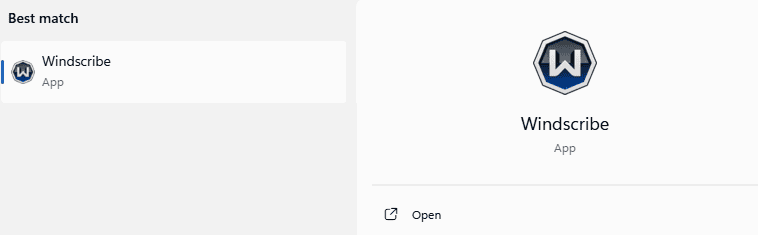
Figure 1 : Windscribe sélectionné dans la recherche Windows avec l’action Open disponible.
Connectez-vous avec votre nom d’utilisateur et votre mot de passe Windscribe. Si vous n’avez pas encore de compte, créez-en un gratuitement dans l’appli.
Une fois connecté, vous verrez la fenêtre principale de Windscribe avec un grand bouton de connexion. Cliquez dessus pour vous connecter automatiquement au meilleur emplacement disponible. Windscribe choisira un emplacement proche qui devrait bien fonctionner avec votre connexion.
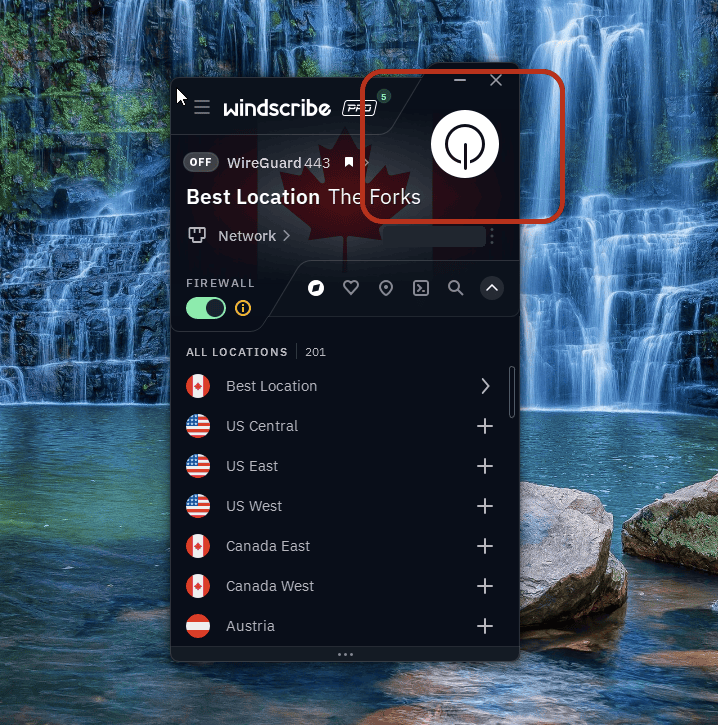
Figure 2 : Windscribe est déconnecté, le bouton d’alimentation est mis en évidence et la liste des emplacements est ouverte. L’adresse IP publique est masquée.
Pour choisir vous-même un emplacement, ouvrez la liste des emplacements et sélectionnez un pays ou une ville. C’est utile si vous avez besoin d’une région précise, si vous voulez tester les débits ou si vous avez simplement un attachement émotionnel à Prague.
Pour vous déconnecter, cliquez à nouveau sur le bouton de connexion.
Remarque sur les emplacements : Les comptes gratuits peuvent uniquement se connecter aux emplacements gratuits. Windscribe propose des emplacements gratuits dans 10 pays. Les emplacements payants sont signalés par une étoile et nécessitent Pro ou un abonnement Build-A-Plan qui comprend cet emplacement.
Réglages Windows recommandés
Les PC Windows ont tendance à faire tourner beaucoup d’applis, de services, de lanceurs, d’outils de synchronisation, de programmes de mise à jour, d’assistants et autres petits colocataires numériques. Ces réglages aident à garder leur trafic sous contrôle.
Firewall
Le Firewall de Windscribe bloque le trafic Internet qui tente de quitter votre PC en dehors du tunnel VPN.
C’est plus strict qu’un simple kill switch. Au lieu d’attendre que le VPN se coupe pour réagir, le Firewall bloque d’emblée le trafic qui contournerait le tunnel. Si la connexion VPN échoue, vos applis ne repassent pas discrètement sur votre connexion Internet habituelle.
C’est important sous Windows, car quantité d’applis se connectent en arrière-plan. Navigateurs, stockage cloud, messageries, lanceurs de jeux, logiciels torrent et services de mise à jour peuvent tous envoyer du trafic sans que vous les utilisiez activement.
Pour la plupart des utilisateurs de Windows, le Firewall est l’un des réglages les plus importants à laisser activés.
Auto-Connect
Auto-Connect est utile si votre PC Windows passe d’un réseau à l’autre.
Un ordinateur de bureau branché sur votre routeur domestique n’a probablement pas besoin de beaucoup d’automatisation. Un ordinateur portable qui saute du Wi-Fi de la maison à celui du bureau, de l’hôtel, de l’aéroport et au réseau suspect du café appelé « Free_Internet_5G », si.
Utilisez Auto-Connect pour indiquer à Windscribe quand se connecter automatiquement. Vous pouvez marquer les réseaux de confiance et laisser Windscribe intervenir lorsque votre PC en rejoint un auquel vous ne faites pas confiance.
Cela élimine le maillon faible de toute configuration de confidentialité : se souvenir de l’activer avant d’en avoir besoin.
Protocole
Le protocole est la méthode de connexion utilisée par Windscribe pour créer le tunnel VPN.
Vous pouvez généralement conserver le réglage par défaut. Si le VPN se connecte, que les débits sont bons et que les sites fonctionnent normalement, félicitations. Inutile de faire de la sélection du protocole votre nouveau passe-temps.
Si un réseau bloque le trafic VPN ou si votre connexion semble instable, changer de protocole peut aider.
- WireGuard est généralement le meilleur choix par défaut sous Windows. Il est rapide, efficace et convient bien à la navigation, au streaming, aux téléchargements et à l’utilisation quotidienne d’un PC.
- IKEv2 se connecte rapidement et peut être fiable, même si certains réseaux restrictifs le bloquent.
- OpenVPN UDP est une norme VPN bien établie qui offre souvent un bon équilibre entre vitesse et fiabilité.
- OpenVPN TCP est généralement plus lent que UDP, mais peut mieux fonctionner sur les réseaux difficiles.
- Stealth déguise le trafic VPN en trafic Web sécurisé ordinaire grâce à OpenVPN sur TLS.
- WStunnel encapsule le trafic dans du trafic WebSocket, ce qui peut aider sur les réseaux qui perturbent les connexions VPN standard.
Si vous êtes sur un réseau scolaire, professionnel, hôtelier ou restrictif qui bloque le trafic VPN normal, essayez Stealth ou WStunnel. Ils sont conçus pour les réseaux hostiles, pas pour donner à votre ordinateur portable un air mystérieux.
Fonctions Windows supplémentaires utiles
Ces fonctions ne sont pas indispensables à une utilisation VPN de base, mais elles peuvent rendre Windscribe beaucoup plus utile sur un PC.
Split Tunneling
Le Split Tunneling vous permet de décider quelles applis utilisent Windscribe et lesquelles utilisent votre connexion Internet habituelle.
C’est utile lorsque différentes applis ont besoin d’un traitement différent. Vous pouvez acheminer votre navigateur, votre client torrent ou votre appli multimédia via Windscribe, tout en laissant une appli bancaire, un lanceur de jeux, un outil professionnel ou une appli du réseau local se connecter normalement.
Sous Windows, c’est particulièrement pratique, car toutes les applis ne se comportent pas de la même manière. Les applis de bureau traditionnelles ne posent généralement pas de problème, mais certaines applis du Microsoft Store et certains services en arrière-plan peuvent nécessiter des tests après la définition de vos règles.
Configurez la fonction, vérifiez que les bonnes applis utilisent la bonne connexion, puis savourez le plaisir de ne pas imposer éternellement une seule règle à tout votre PC.
Secure Hotspot
Le Secure Hotspot permet à votre PC Windows de partager sa connexion Windscribe avec d’autres appareils par Wi-Fi.
Votre PC se connecte d’abord à Windscribe. Il crée ensuite un point d’accès Wi-Fi. Tout appareil qui rejoint ce point d’accès utilise la connexion VPN de votre ordinateur Windows.
C’est utile pour les appareils qui ne peuvent pas exécuter directement l’appli Windscribe, comme certaines Smart TV, consoles, clés de streaming ou vieilles tablettes qui devraient probablement être dans un musée, mais qui s’allument encore.
Il y a une petite subtilité typiquement Windows : Secure Hotspot dépend de la compatibilité de votre adaptateur Wi-Fi et de son pilote. Si votre matériel ne le prend pas en charge, la fonction risque de ne pas marcher. L’ordinateur ne présentera pas ses excuses.
R.O.B.E.R.T.
R.O.B.E.R.T. est le bloqueur personnalisable de Windscribe au niveau du DNS.
Lorsque vous êtes connecté à Windscribe, R.O.B.E.R.T. peut bloquer de nombreuses publicités, des traqueurs, des logiciels malveillants et d’autres domaines indésirables avant leur chargement sur votre PC. Cela peut réduire les parasites, limiter le suivi et arrêter certains domaines louches avant même que votre navigateur s’en mêle.
Vous pouvez gérer R.O.B.E.R.T. depuis l’application de bureau ou sur les pages Catégories de blocage et Règles personnalisées sous Sécurité, dans Mon compte.
Ce n’est pas un antivirus et il ne vous empêchera pas d’exécuter un fichier suspect nommé totally_real_invoice_final_FINAL.exe, mais il ajoute à votre connexion une couche utile de filtrage des domaines.
Configuration idéale pour un ordinateur portable Windows
Pour un ordinateur portable, la meilleure configuration demandant peu d’entretien est la suivante :
Firewall activé. Auto-Connect configuré. Protocole laissé sur le réglage par défaut, sauf si quelque chose ne fonctionne plus.
Vous obtenez ainsi un bon équilibre entre protection et simplicité. Windscribe peut se connecter lorsque vous rejoignez des réseaux auxquels vous ne faites pas confiance, et le Firewall aide à empêcher le trafic de s’échapper du tunnel VPN si la connexion se coupe.
C’est particulièrement utile sur les Wi-Fi publics, en voyage, dans les espaces de coworking, les hôtels, les aéroports et partout où les gens nomment les réseaux comme s’ils installaient des pièges dans un dessin animé.
Pour vérifier la connexion de votre navigateur, comparez votre adresse IP publique avant et après la connexion à l’aide de notre outil de vérification d’adresse IP. Cela ne teste pas le trafic de toutes les applications de votre appareil.

